> ## Documentation Index
> Fetch the complete documentation index at: https://www.siya.com/llms.txt
> Use this file to discover all available pages before exploring further.

# Quick Start Guide

> Get up and running with Siya in minutes - installation, setup, and first tasks

<Card title="Welcome to Siya!" icon="sparkles" color="#0000FF">
  This guide will help you get started with Siya in just a few minutes. Let's begin your journey with the most advanced AI assistant available today.
</Card>

## System Requirements

<Tabs>
  <Tab title="macOS Requirements">
    <Card title="macOS Desktop App" icon="apple">
      Currently available for macOS with Windows and Linux coming soon
    </Card>

    <Steps>
      <Step title="Operating System">
        macOS 11.0 (Big Sur) or later
      </Step>

      <Step title="Memory">
        8GB RAM minimum (16GB recommended for best performance)
      </Step>

      <Step title="Storage">
        2GB available disk space
      </Step>

      <Step title="Internet">
        Required for AI features (optional for local models)
      </Step>

      <Step title="Processor">
        Apple Silicon (M1/M2/M3) or Intel processor
      </Step>
    </Steps>
  </Tab>

  <Tab title="Coming Soon">
    <Columns cols={3}>
      <Card title="Windows" icon="windows">
        Native Windows application in development
      </Card>

      <Card title="Linux" icon="linux">
        Support for major Linux distributions
      </Card>

      <Card title="Mobile" icon="mobile">
        iOS and Android apps planned
      </Card>
    </Columns>
  </Tab>
</Tabs>

## Installation

<Steps titleSize="h3">
  <Step title="Download Siya" icon="download">
    <Card title="Download for macOS" icon="download" href="https://app.siya.com/join-waitlist.html">
      **Apple Silicon (M1/M2/M3)** - Recommended for best performance

      <Note>
        Intel version coming soon. The download will start immediately when you click the link.
      </Note>
    </Card>
  </Step>

  <Step title="Install the Application" icon="folder">
    <Columns cols={2}>
      <div>
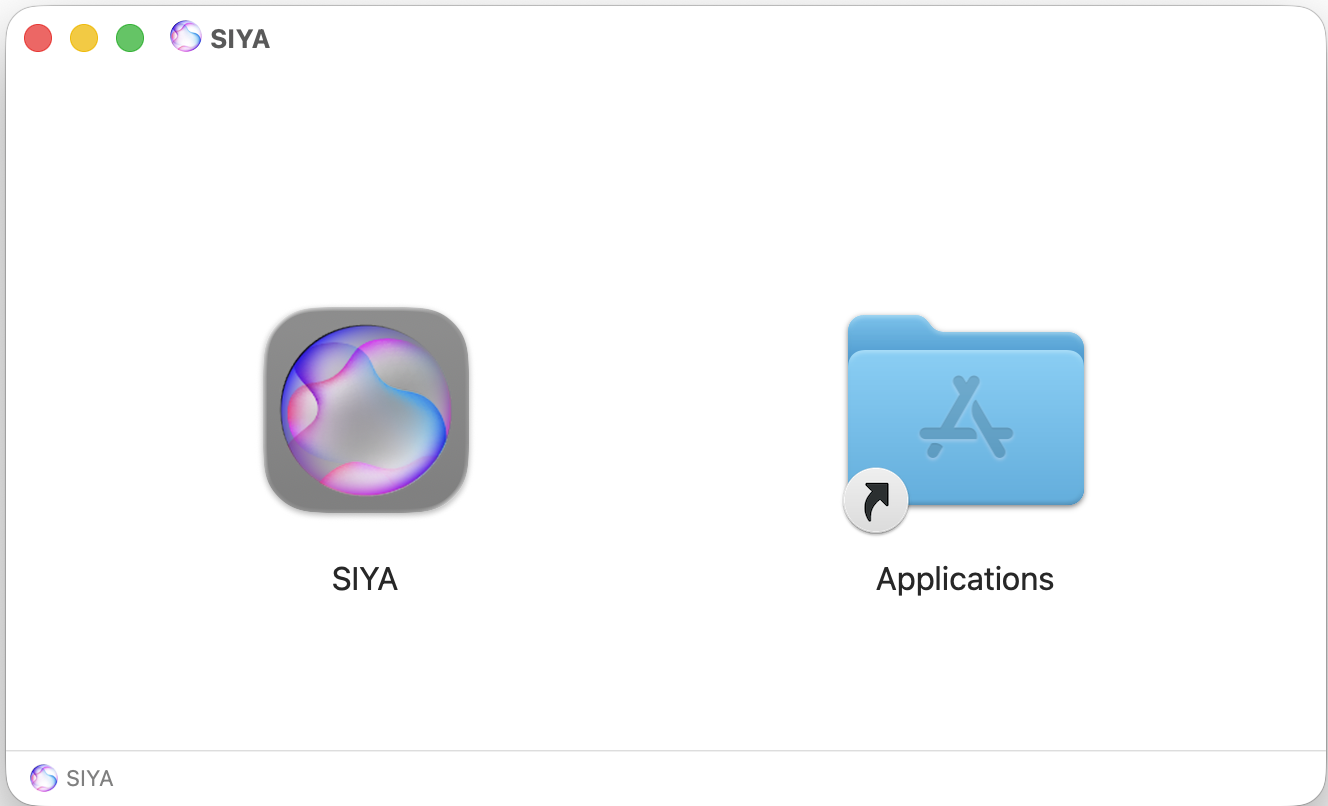
        1. Open the downloaded **Siya.dmg** file
        2. Drag the Siya icon to your Applications folder
        3. Eject the disk image
      </div>

      <Frame>
        <img src="https://siya-agent-ap-south-1-211125639390.s3.ap-south-1.amazonaws.com/docs-images/SIYA-DMG_OPENER.png" alt="Drag Siya to Applications" />
      </Frame>
    </Columns>
  </Step>

  <Step title="First Launch" icon="play">
    <Warning>
      On first launch, macOS may show a security warning. Click "Open" to confirm you want to run the app.
    </Warning>

    1. Open Siya from your Applications folder
    2. If prompted, click "Open" to confirm
    3. Grant necessary permissions when requested
  </Step>
</Steps>

## Initial Setup

<AccordionGroup>
  <Accordion title="Account Setup" icon="user" defaultOpen>
    <Steps>
      <Step title="Create Account">
        Create your Siya account or sign in with existing credentials
      </Step>

      <Step title="Choose Plan">
        Select your subscription plan based on your needs
      </Step>

      <Step title="Complete Onboarding">
        Follow the guided setup to configure your preferences
      </Step>
    </Steps>
  </Accordion>

  <Accordion title="Preferences" icon="gear">
    Navigate to **Siya → Preferences** to customize:

    <Columns cols={2}>
      <Card title="Theme" icon="palette">
        Choose between light and dark mode
      </Card>

      <Card title="Shortcuts" icon="keyboard">
        Set up keyboard shortcuts
      </Card>

      <Card title="Notifications" icon="bell">
        Configure alert preferences
      </Card>

      <Card title="Models" icon="brain">
        Select your preferred AI model
      </Card>
    </Columns>
  </Accordion>
</AccordionGroup>

## Your First Tasks

<Tabs>
  <Tab title="Simple Examples">
    <Card title="Example 1: Simple Question" icon="question">
      ```
      What's the weather like in San Francisco?
      ```
    </Card>

    <Card title="Example 2: Code Generation" icon="code">
      ```
      Create a Python function that calculates the fibonacci sequence
      ```
    </Card>

    <Card title="Example 3: Data Analysis" icon="chart-line">
      ```
      Analyze this CSV file and create a summary with key statistics
      ```
    </Card>
  </Tab>

  <Tab title="Advanced Examples">
    <Card title="Example 4: Web Research" icon="globe">
      ```
      Research the top 5 JavaScript frameworks in 2024 and compare their features
      ```
    </Card>

    <Card title="Example 5: Add Integrations" icon="plug">
      ```
      Configure the GitHub MCP server for me
      Add the stock market MCP server
      Set up PostgreSQL database connection
      ```
    </Card>

    <Card title="Example 6: Create Automations" icon="webhook">
      ```
      Create a hook to notify me when tasks complete
      Set up automatic git commits after file edits
      Make a hook that logs all my file operations
      ```
    </Card>
  </Tab>
</Tabs>

## Understanding the Interface

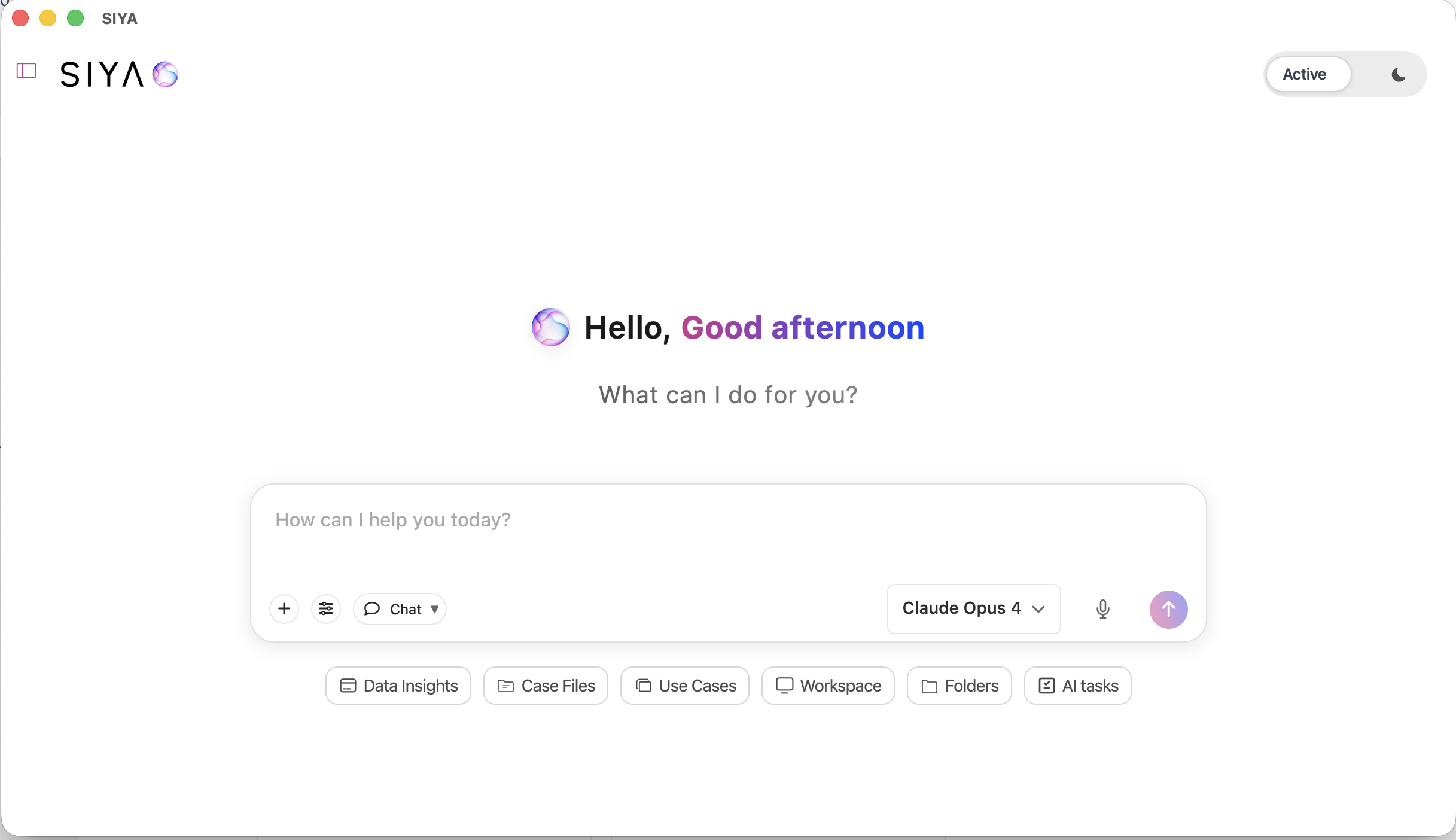
<Frame caption="Siya's intuitive interface makes it easy to get started">
  <img src="https://siya-agent-ap-south-1-211125639390.s3.ap-south-1.amazonaws.com/docs-images/SIYA_HOME.png" alt="Siya Interface Overview" />
</Frame>

### Main Components

<Columns cols={2}>
  <Card title="Input Area" icon="keyboard">
    Where you type or paste your requests. Supports multi-line input and file uploads.
  </Card>

  <Card title="Conversation View" icon="message">
    Shows the ongoing dialogue with Siya with syntax highlighting and rich formatting.
  </Card>

  <Card title="Status Bar" icon="info">
    Displays current activity, agent status, and progress indicators.
  </Card>

  <Card title="Toolbar" icon="tools">
    Quick access to new chat, history, settings, and help.
  </Card>
</Columns>

## Execution Modes

<Card title="Choose Your Working Style" icon="toggle-on">
  Siya adapts to how you prefer to work with two distinct modes
</Card>

<Columns cols={2}>
  <Card title="Chat Mode (Interactive)" icon="message" color="#07C983">
    **Perfect for:**

    * Exploratory questions
    * Step-by-step guidance
    * Iterative refinement
    * Learning new concepts
    * Direct tool usage

    <Tip>
      Simply start typing your question or request to use Chat Mode
    </Tip>
  </Card>

  <Card title="Task Mode (Autonomous)" icon="play" color="#15803D">
    **Perfect for:**

    * Complex projects
    * Multi-step operations
    * Batch processing
    * Automated workflows
    * Production tasks

    <Tip>
      Start with action words like "Create", "Build", "Analyze"
    </Tip>
  </Card>
</Columns>

## Working with Files

<Steps>
  <Step title="Uploading Files" icon="upload">
    <Columns cols={2}>
      <div>
        * Drag and drop files into the chat window
        * Or click the attachment button
        * Multiple files supported
      </div>

      <Card title="Supported Formats" icon="file">
        * Text files (.txt, .md, .json)
        * Code files (.py, .js, .java, etc.)
        * Data files (.csv, .xlsx)
        * Documents (.pdf, .docx)
      </Card>
    </Columns>
  </Step>

  <Step title="Saving Results" icon="save">
    * Click the save button on any response
    * Use keyboard shortcut **⌘+S**
    * Results are saved to your designated folder
  </Step>
</Steps>

## Extending Siya

### MCP Integration (Easy Setup)

<Card title="Automatic Configuration" icon="magic" color="#9C27B0">
  Siya can automatically configure integrations for you! Just ask:
</Card>

<CodeGroup>
  ```text GitHub theme={null}
  "Add the GitHub MCP server"
  ```

  ```text Database theme={null}
  "Configure PostgreSQL database connection"
  ```

  ```text Slack theme={null}
  "Set up Slack integration"
  ```

  ```text Stock Market theme={null}
  "Add the stock market data server"
  ```
</CodeGroup>

<Info>
  Siya will find the right MCP server, guide you through configuration, set up authentication if needed, and verify everything works.
</Info>

### Hooks for Automation

<Card title="Create Custom Automations" icon="webhook">
  Simply describe what you want and Siya will create the appropriate hook:
</Card>

<CodeGroup>
  ```text Notifications theme={null}
  "Notify me when any task completes"
  ```

  ```text Logging theme={null}
  "Log all file operations to a file"
  ```

  ```text Git theme={null}
  "Auto-commit changes to git after edits"
  ```

  ```text Slack theme={null}
  "Send Slack messages for important events"
  ```
</CodeGroup>

## Best Practices

<AccordionGroup>
  <Accordion title="Writing Effective Prompts" icon="pencil">
    <Columns cols={2}>
      <Card title="Be Specific" icon="check" color="#4CAF50">
        ✅ "Create a Python script that reads a CSV file and generates a bar chart"
      </Card>

      <Card title="Avoid Vague" icon="x" color="#F44336">
        ❌ "Help with Python"
      </Card>
    </Columns>

    <Columns cols={2}>
      <Card title="Provide Context" icon="check" color="#4CAF50">
        ✅ "I'm getting a TypeError in my React component when trying to map over an array"
      </Card>

      <Card title="Avoid Unclear" icon="x" color="#F44336">
        ❌ "Fix this error"
      </Card>
    </Columns>
  </Accordion>

  <Accordion title="Getting Better Results" icon="star">
    * **Break Down Complex Tasks**: Let Siya create a plan first
    * **Use Follow-up Questions**: Refine results through conversation
    * **Provide Sample Data**: Include examples of input/output
    * **Specify Constraints**: Mention any limitations or requirements
  </Accordion>
</AccordionGroup>

## Common Tasks

<Tabs>
  <Tab title="Development">
    ```text theme={null}
    Create a REST API with Express.js that handles user authentication
    ```
  </Tab>

  <Tab title="Data Processing">
    ```text theme={null}
    Clean this dataset by removing duplicates and filling missing values
    ```
  </Tab>

  <Tab title="Content Creation">
    ```text theme={null}
    Write a professional email declining a meeting invitation
    ```
  </Tab>

  <Tab title="Research">
    ```text theme={null}
    Compare AWS, Google Cloud, and Azure for hosting a web application
    ```
  </Tab>
</Tabs>

## Keyboard Shortcuts

<Table>
  <tr>
    <th>Action</th>
    <th>Shortcut</th>
  </tr>

  <tr>
    <td>New Chat</td>
    <td><kbd>⌘</kbd> + <kbd>N</kbd></td>
  </tr>

  <tr>
    <td>Save Response</td>
    <td><kbd>⌘</kbd> + <kbd>S</kbd></td>
  </tr>

  <tr>
    <td>Copy Response</td>
    <td><kbd>⌘</kbd> + <kbd>C</kbd></td>
  </tr>

  <tr>
    <td>Search History</td>
    <td><kbd>⌘</kbd> + <kbd>F</kbd></td>
  </tr>

  <tr>
    <td>Preferences</td>
    <td><kbd>⌘</kbd> + <kbd>,</kbd></td>
  </tr>

  <tr>
    <td>Toggle Mode</td>
    <td><kbd>⌘</kbd> + <kbd>M</kbd></td>
  </tr>
</Table>

## Tips for Success

<Steps titleSize="h3">
  <Step title="Start Simple" icon="seedling">
    Begin with straightforward tasks to understand Siya's capabilities
  </Step>

  <Step title="Be Patient" icon="clock">
    Complex tasks may take a moment to process
  </Step>

  <Step title="Save Important Work" icon="save">
    Keep copies of valuable outputs
  </Step>

  <Step title="Explore Features" icon="compass">
    Try different types of tasks to discover Siya's full potential
  </Step>

  <Step title="Use History" icon="history">
    Learn from previous successful interactions
  </Step>

  <Step title="Add Integrations" icon="plug">
    Extend capabilities with MCP servers
  </Step>

  <Step title="Automate Workflows" icon="webhook">
    Create hooks for repetitive tasks
  </Step>
</Steps>

## Getting Help

<Columns cols={3}>
  <Card title="In-App Help" icon="question">
    * Click the Help menu
    * Use the ? button in toolbar
    * Type "help" in chat
  </Card>

  <Card title="Documentation" icon="book">
    Access through Help menu or visit our docs site
  </Card>

  <Card title="Support" icon="headset">
    * Email: [dev@siya.com](mailto:dev@siya.com)
    * Response within 24 hours
  </Card>
</Columns>

## What's Next?

<Card title="Continue Your Journey" icon="map" color="#0000FF">
  Now that you're set up, explore these resources to master Siya:
</Card>

<Columns cols={2}>
  <Card title="Desktop Application" icon="desktop" href="/siya-superagent/desktop-application">
    Master the macOS app features
  </Card>

  <Card title="Model Selection" icon="brain" href="/siya-superagent/model-selection">
    Choose your AI model
  </Card>

  <Card title="Execution Modes" icon="toggle-on" href="/siya-superagent/execution-modes">
    Master chat and task modes
  </Card>

  <Card title="Agent Capabilities" icon="users" href="/siya-superagent/agent-system">
    Learn what each agent can do
  </Card>

  <Card title="MCP Integration" icon="plug" href="/siya-superagent/mcp-integration">
    Extend Siya's capabilities
  </Card>

  <Card title="Hooks Automation" icon="webhook" href="/siya-superagent/hooks-automation">
    Automate your workflows
  </Card>
</Columns>

<Check>
  Congratulations! You're ready to start using Siya. Welcome to a new era of AI assistance!
</Check>

***

*Welcome to Siya - Your AI team is ready to assist!*